

An HP printer firmware update has caused the printer to reject third-party printer cartridges again. If your printer stopped printing due to a "Non-HP Chip Detected","Supply Problem" or"Supply Memory Error" error message, HP has probably updated your printer firmware. This is frustrating for users who prefer to use cheaper, third-party cartridges instead of expensive HP-branded ones. To make your printer accept non-HP cartridges again, you can downgrade the firmware to an old version by following this blog.
 |
Firmware Safe HP 910XL Ink Cartridge Replacement Combo Pack of 4 – With Upgraded Chip✔ Fully Functional for Use in HP+ printers (Models ending in"e") |
Index:
1. How to Downgrade HP Printer Firmware - Windows
2. How to Downgrade HP Printer Firmware - Mac
3. HP Printer Firmware Downgrade Download
4. Suggestions for Firmware Downgrade Failing
5. Printer Ink & Toner Cartridges with Updraded Chips
How to Downgrade HP Printer Firmware - Windows
1. Make sure your printer is connected to Wi-Fi or wired network.
2. Adjust the following settings in the printer menu to make your printer allow downgrade. In the Manage Updates menu, touch the Allow Downgrade button and then select Yes. Also, do not forget to touch the Allow Updates button and then select Yes.
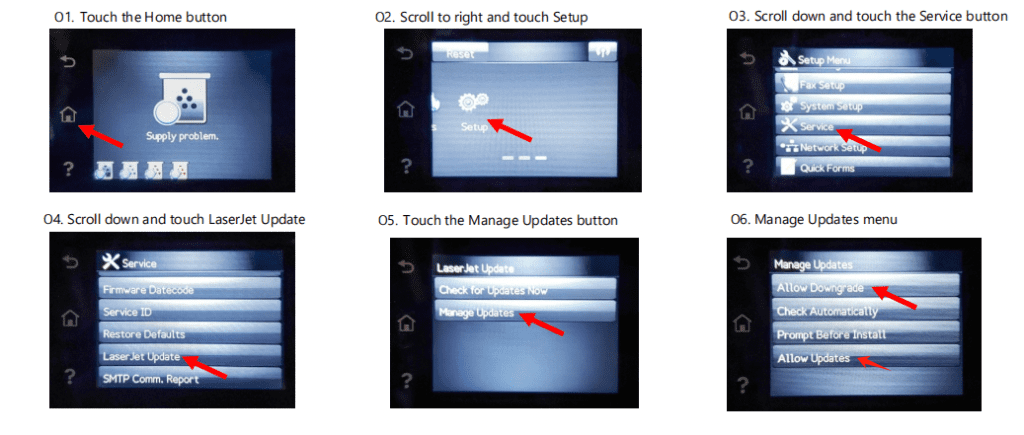
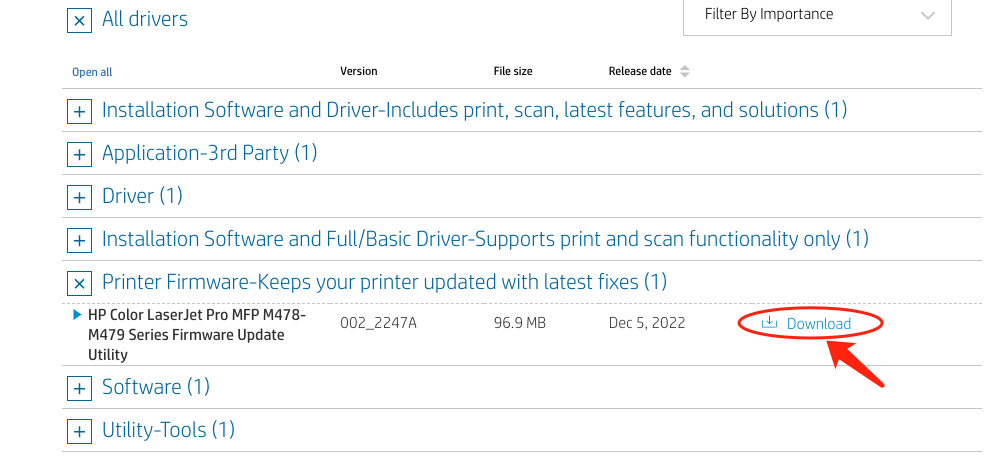
3. Download an old HP printer firmware to your computer. HP no longer provides downloads for older firmware versions. So you need to use your own backups or download them from third-party websites. We also provide old HP firmware downloads for some printers in the third part of this blog. Jump to HP Printer Firmware Downgrade Download. You can also download the current firmware for backup on HP official website:https://support.hp.com/us-en/drivers/printers
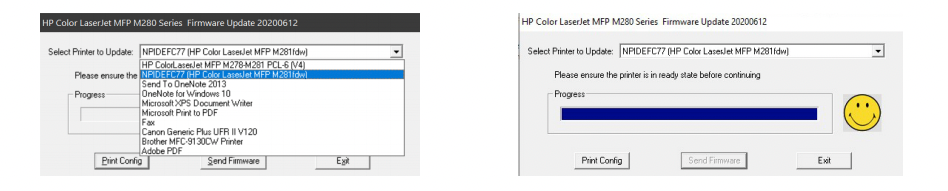
4. Send the old HP firmware from your Windows computer to the printer. After the old firmware is downloaded and saved on your computer, double-click on the file and then select your printer from the dropdown menu. Once the printer is selected, click the Send Firmware button. Sending the old firmware to your HP printer takes about two minutes. After the progress is completed, click the Exit button. Then the printer will automatically restart after the firmware downgrade.
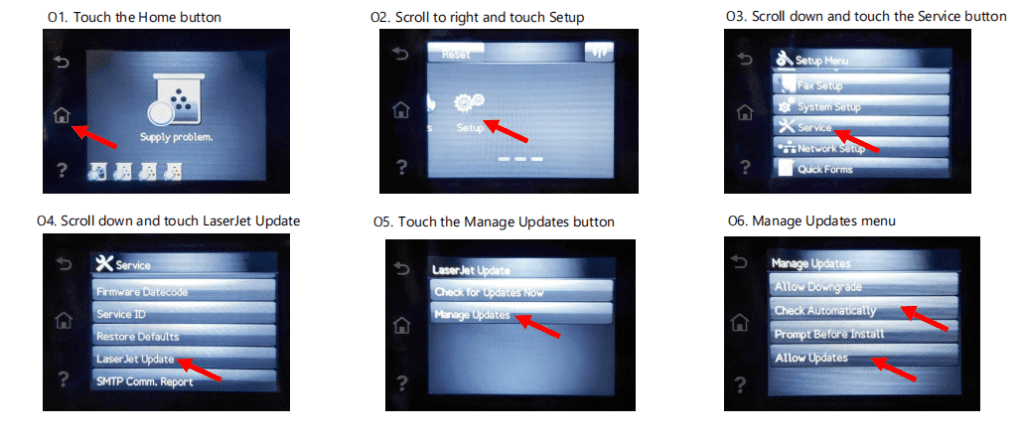
5. Adjust the following printer settings again to avoid future HP printer firmware updates. In the Manage Updates menu, touch the Check Automatically button and select Off. Then touch Allow Updates and select No. You can also read our blog How to Disable HP Printer Firmware Update to learn more details.
How to Downgrade HP Printer Firmware - Mac
1. Make sure your printer is connected to Wi-Fi or wired network.
2. Adjust the following settings in the printer menu to make your printer allow downgrade. In the Manage Updates menu, touch the Allow Downgrade button and then select Yes. Do not forget to touch the Allow Updates button and then select Yes.
3. Download an old HP printer firmware to your computer. HP no longer provides downloads for older firmware versions. So you need to use your backups or download them from this blog. It's also recommended to download the current firmware for backup on HP's official website:https://support.hp.com/us-en/drivers/printers
4. Send the old HP firmware from your Mac to the printer. This operation is different from that of Windows, please refer to the following steps:
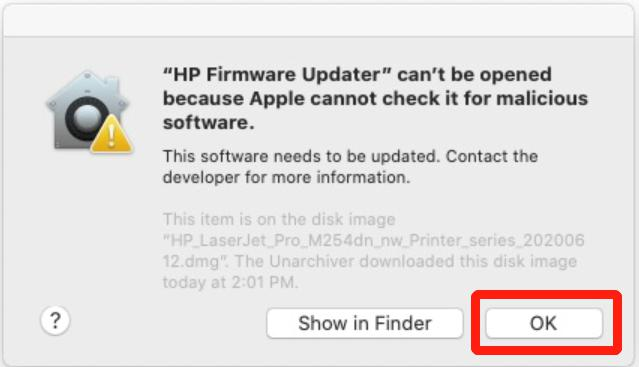
4.1 Double-click on the firmware file. The first time to run the firmware file will trigger a system security pop-up notice, press “OK” to close it.
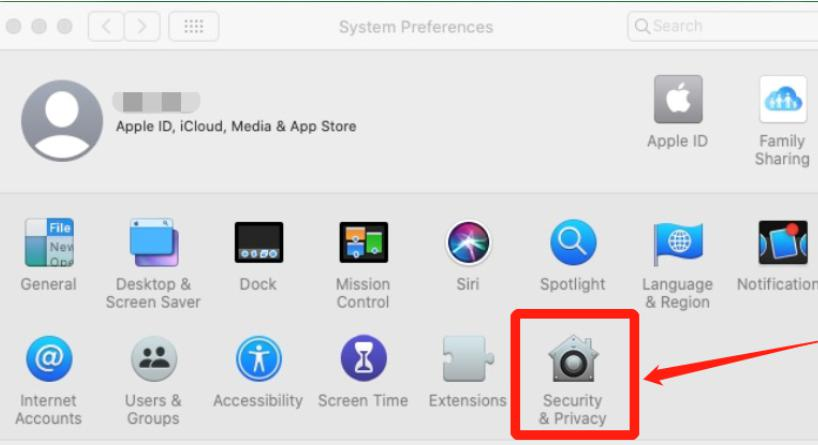
4.2 Visit System Preference and select “Security & Privacy” to allow further firmware installation.
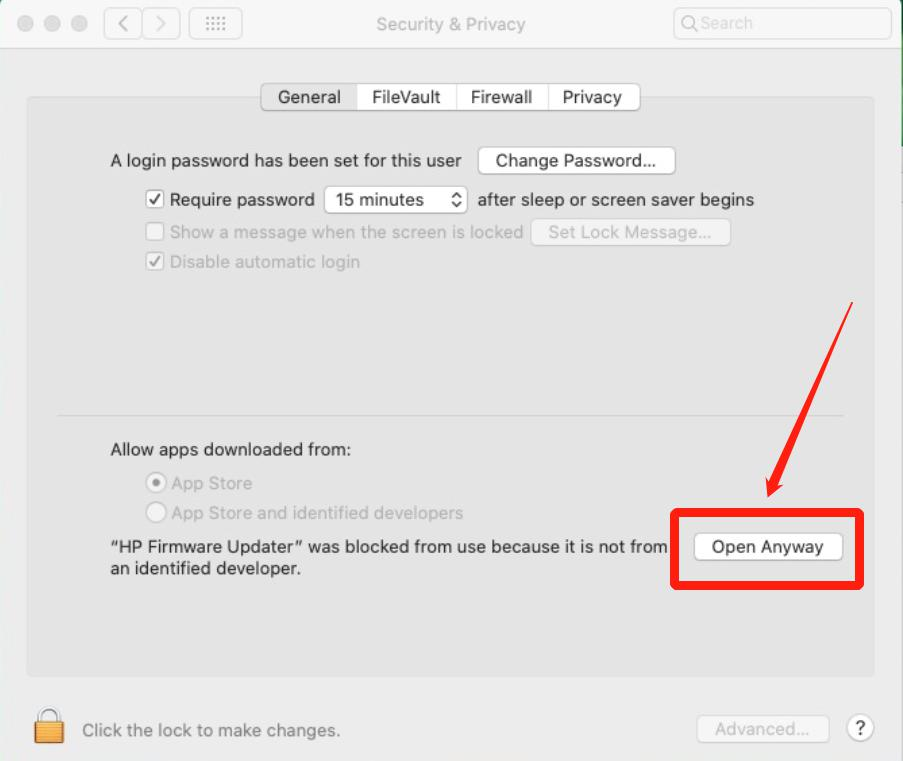
4.3 Under Security & Privacy, click on “Open Anyway” to proceed.
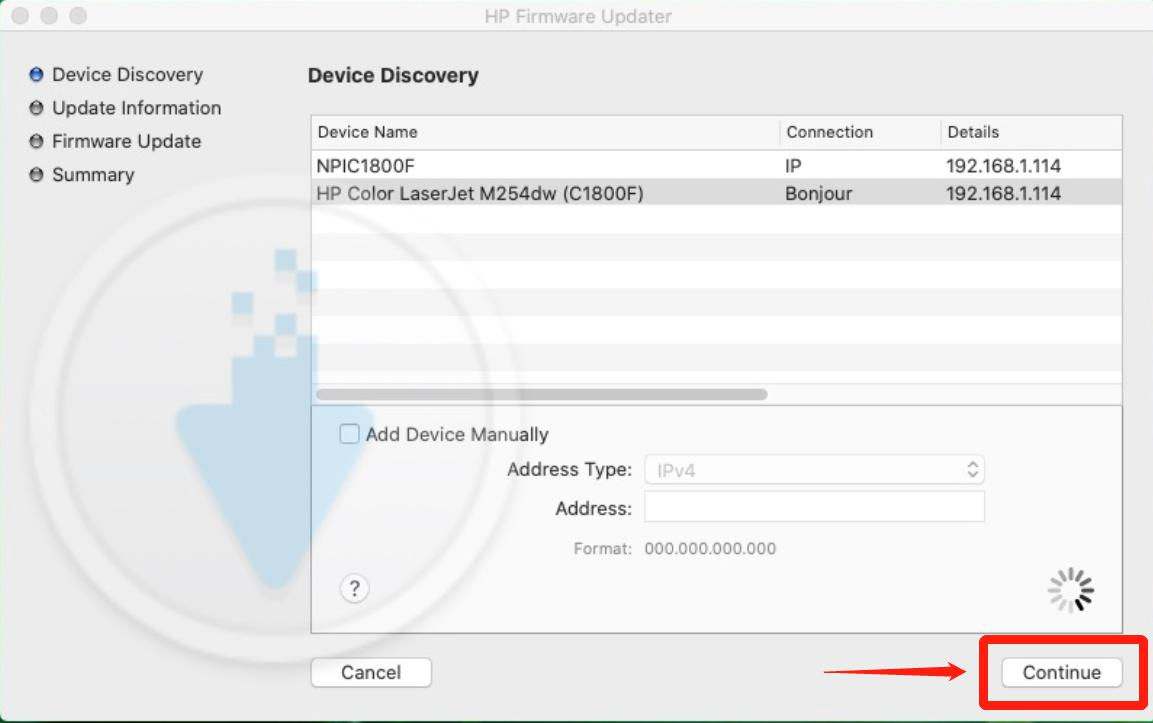
4.4 Carefully select the correct printer model needed to be downgraded and choose “Continue”.
4.5 After the update is completed, click on “Done” button. The printer will automatically restart later.
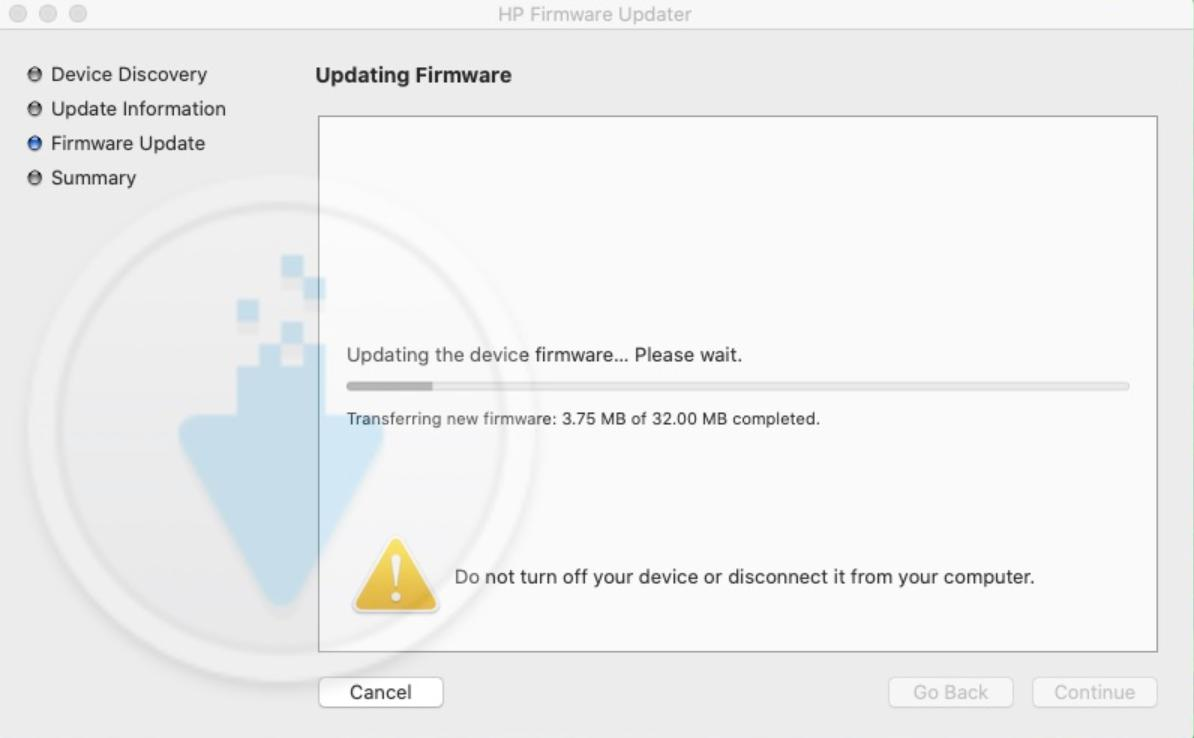
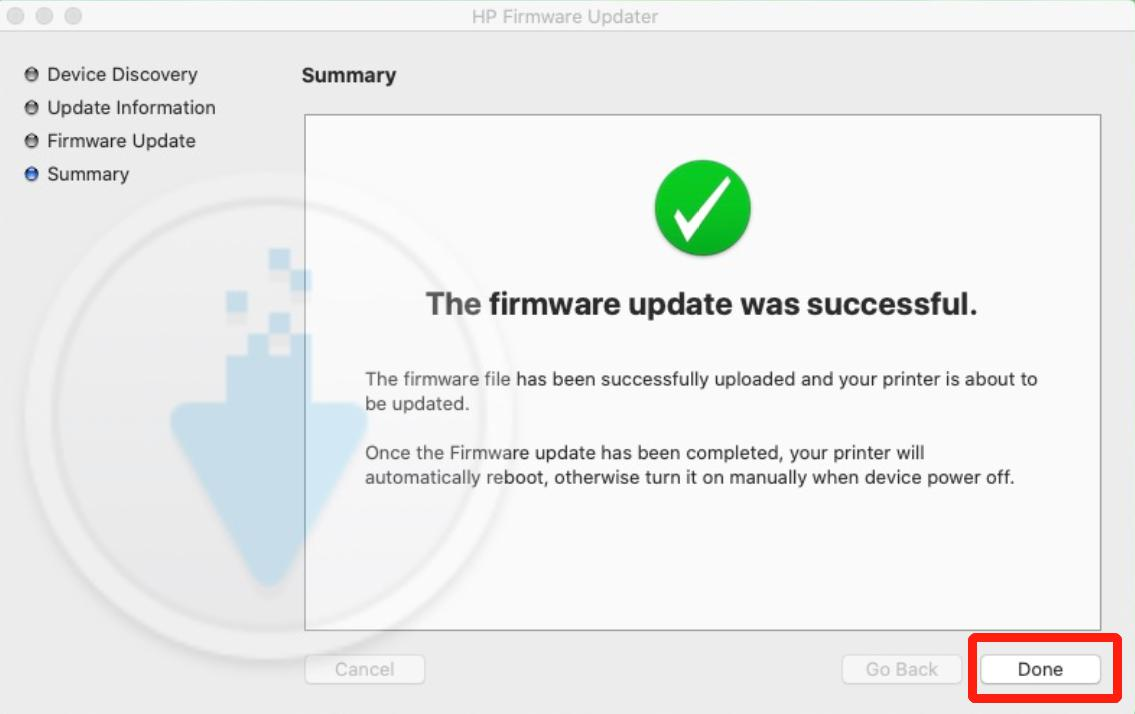
5. Adjust the following settings to avoid future HP printer firmware updates. In the Manage Updates menu, touch the Check Automatically button and select Off. Then touch Allow Updates and select No. (Disabling automatic firmware updates can prevent compatible toner cartridges from being blocked in the future.)
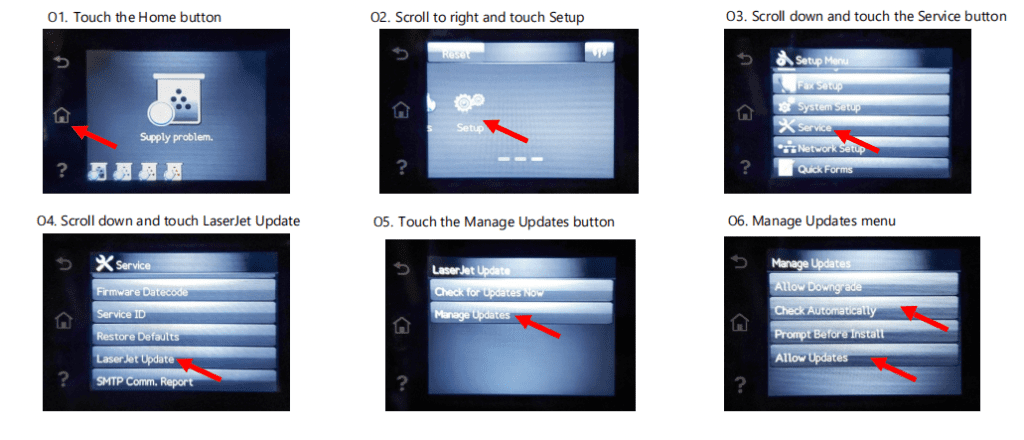
After downgrading the printer firmware, your HP printer should be able to print with non-HP printer cartridges again. Then you can reinstall the cartridges and test print right away.
NOTE:
Restarting your printer after the update is completed and re-sending the firmware to the printer might be required due to the"error state" of the printer.
HP Printer Firmware Downgrade Download
HP no longer provides downloads for old firmware versions. Thankfully, we saved some old versions for backup. So you can download the one for your printer from the list below.
In March 2026, Albian shared two older Windows firmware files for HP 962/XL ink cartridges with us: OJP9010_2103B (Jan 29, 2021) and OJP9010_2115A (Apr 27, 2021). We've added them to the Windows column of our HP 962 list. Thank you, Albian!
Suggestions for Firmware Downgrade Failing
If you downgrade the firmware but fail, you can try the following ways.
1. Run the Update Again
Please make sure that your printer is not in use and that you do not have any documents queued for printing. And try to rerun the firmware program based on the above steps. If it still can't work, try to unplug the power cord and let it sit for 30-40 seconds. After 30 seconds of sitting, you can plug the power cord back into the machine. Let it sit for 2-3 minutes to allow it to complete its startup tasks and then try to update the firmware again. This is because if the Status of the HP Printer Update is Busy, it may result in not being allowed to run the update. So, make sure the Status of the HP Print Update is Ready which is the key to running the update successfully.
2. Ensure That the Selected Printer Port Matches the Printer's IP Address
Firstly, find your selected printer, and right-click it to select the Printer Properties from the context menu. Secondly, click on the Ports tab and select your printer. Then click the Configure Port button, and come to Port Setting. Thirdly, check if the Port Name matches the Printer's IP Address or not. If you are not clear about how to identify your IP address, check the section Identify the IP address for printers connected using Wi-Fi Direct in the video instructions.
Note: In Port Setting, please also make sure you select RAW in the Protocol section and uncheck SNMP Status Enabled.
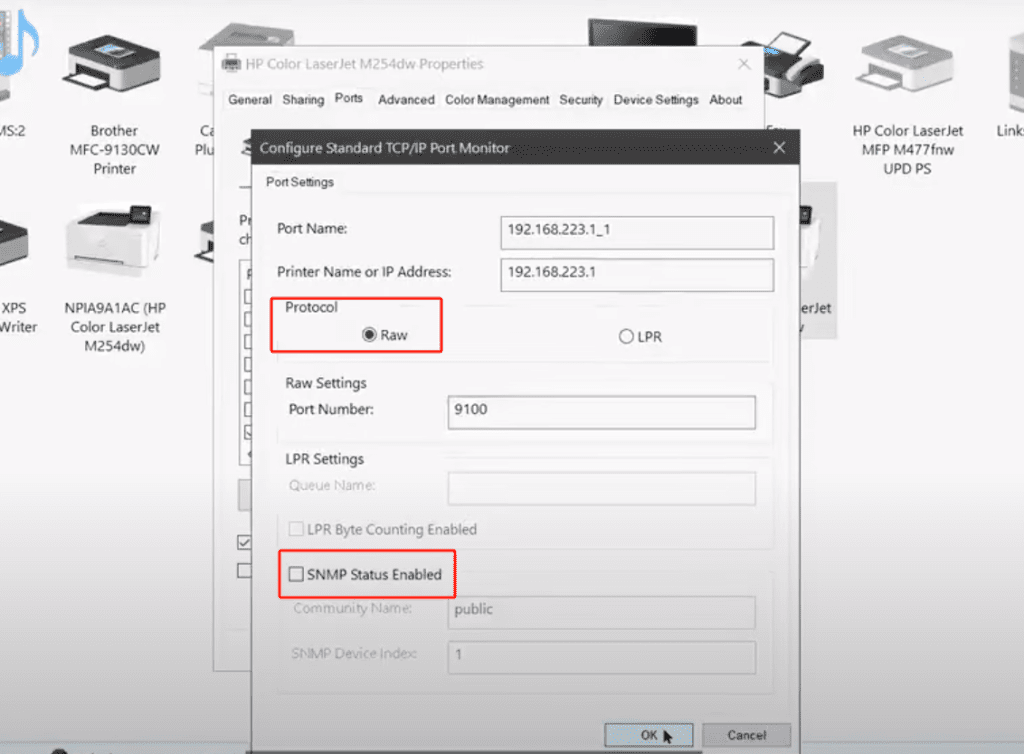
3. Fix Not Applicable Issue
Some of you may encounter a"Not Applicable" issue when downgrading the printer's firmware. Here are steps that may help fix this problem.
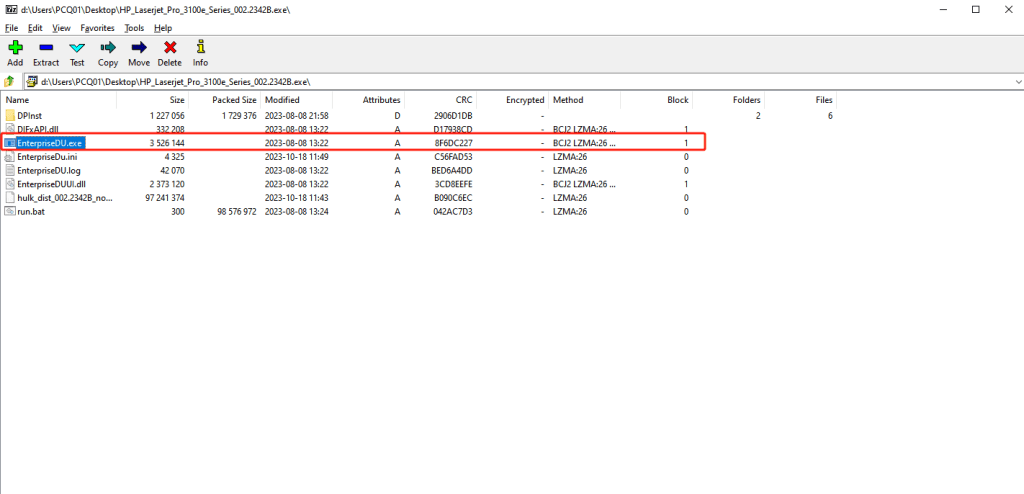
Step 1: Use WinZip or 7-zip to take the .exe file (the old firmware file you downloaded) and extract it into the desktop.
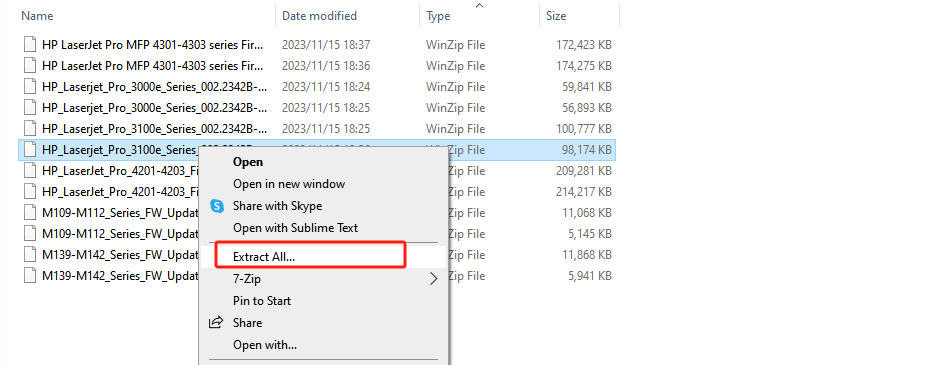
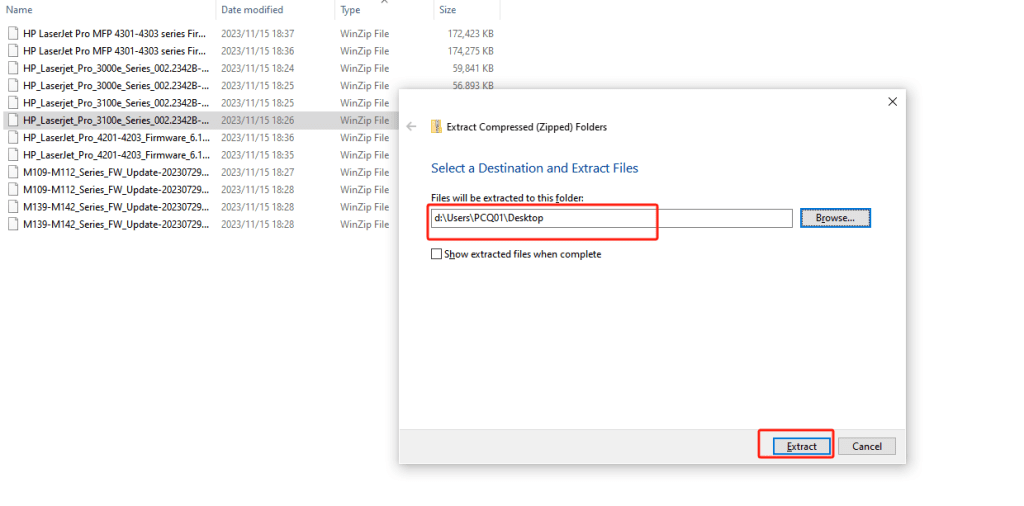
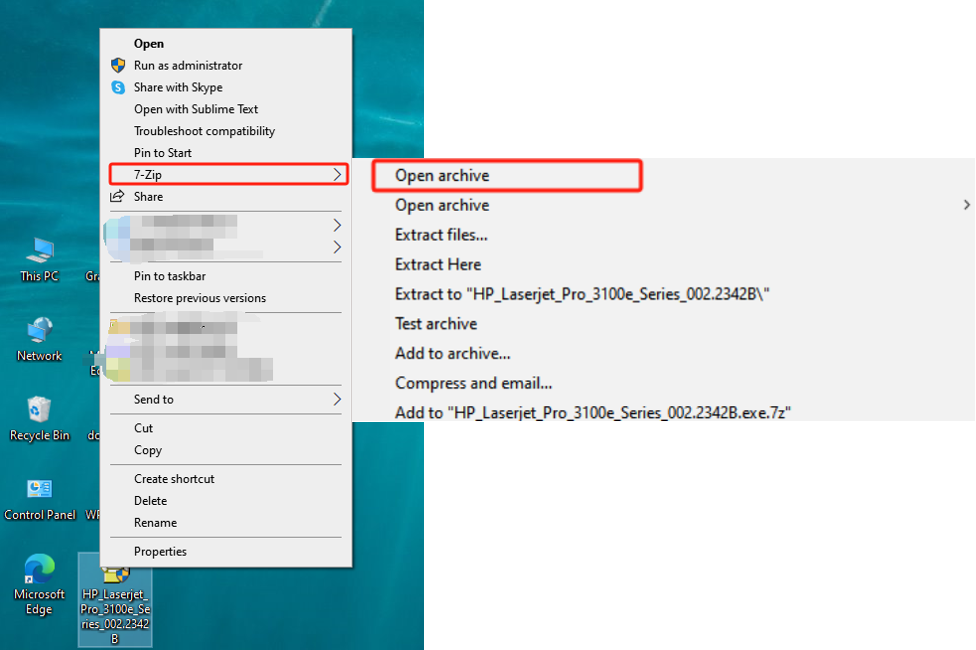
Step 2: Find .exe you extracted, and right-click the .exe and open it via win-zip or 7-zip (7-zip is recommended).
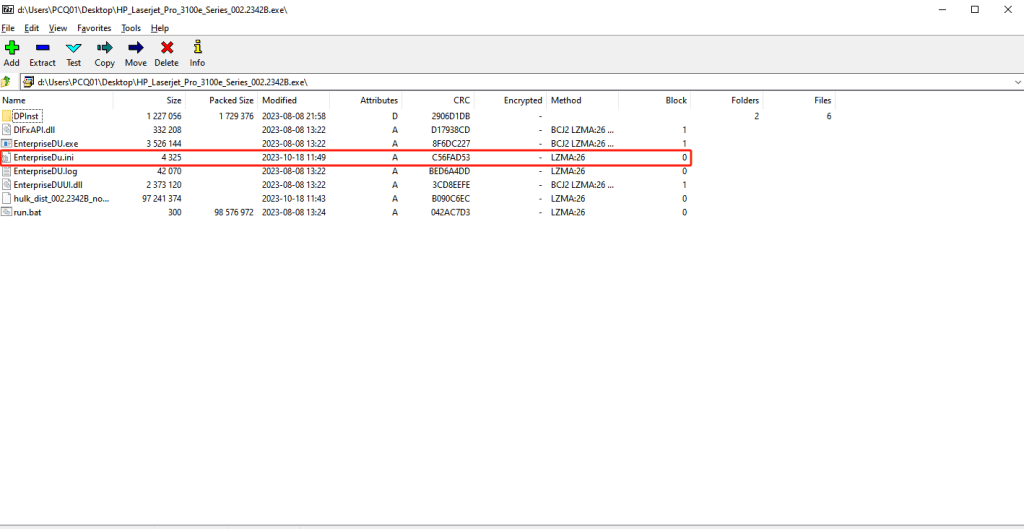
Step 3: Find and open EnterpriseDU.ini file, and change VerifyDownloadID from 1 to 0. Then, save the file.
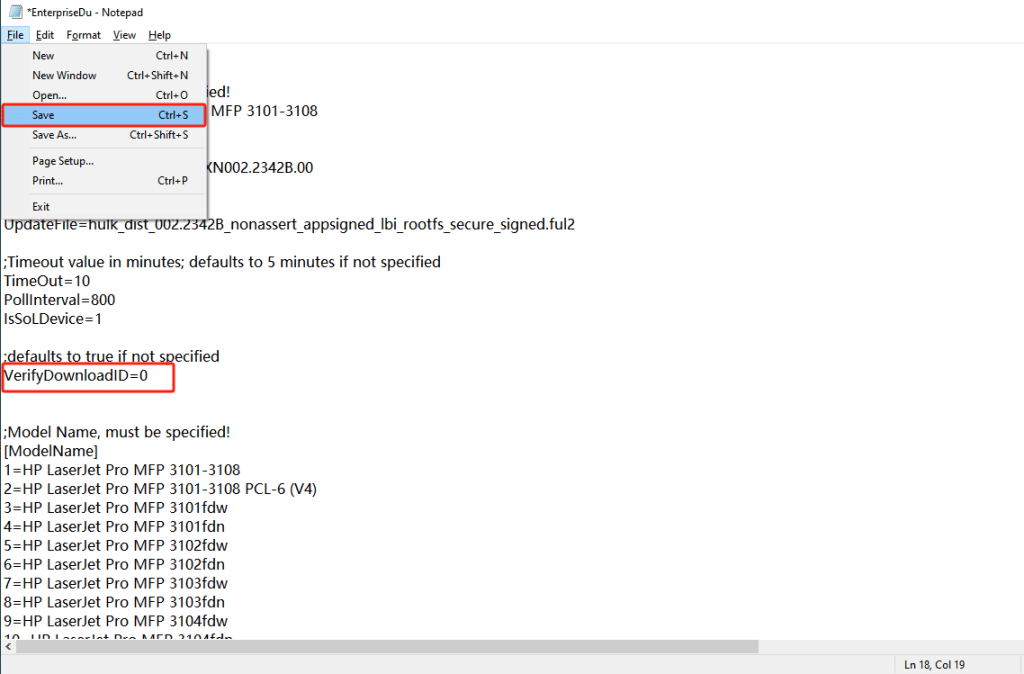
Step 4: Go back, and run EnterpriseDU.exe. Now, you can get past the"Not Applicable" error and allow you to update.
Tip: HP Supporter also came up with a similar instruction to help fix the"Not Applicable" error. If you are interested in, you can review it.
Printer Ink & Toner Cartridges with Upgraded Chips
If the printer firmware downgrade is too difficult for you, you have an easier way - purchase cartridges with upgraded chips directly. Whenever a firmware issue occurs, YBTONER.COM is almost the first to offer printer cartridges with upgraded chips. Here is how we do it. So you can shop with confidence!

Monitor HP firmware updates from time to time
Our engineers monitor HP printer firmware updates from time to time. Once HP releases a new firmware version, we will test the compatibility of our products as soon as possible. So, only products confirmed to be compatible with the latest firmware will be shipped.
Partner with industry-leading manufacturers
We have established a long-term partnership with industry-leading manufacturers. Once HP updates printer firmware, we will work closely with our manufacturers to find the best solutions shortly. E.g. we can make our cartridges work with the latest printer firmware by upgrading the chip, replacing the chip, or replacing the toner cartridge.
Supply from our local warehouses
We have two warehouses in the US, one in California and one in Pennsylvania. Hence, we can deliver most orders within 1-3 business days. Once HP updates printer firmware, we will update our inventory and ship ink & toner cartridges with upgraded chips with no delay. As a result, you can always get the products with the latest chips at YB Toner!


306 comments
Hi Nick. Thanks for your feedback. This link might be helpful.(https://h30434.www3.hp.com/t5/Printers-Archive-Read-Only/my-printer-is-saying-that-it-is-busy-and-is-not-printing/td-p/6960835)
This returns a 404 error, can you provide an updated link?
Hi Lisa,
You can try downgrading your HP 9022e printer using older firmware. Unfortunately, we don’t currently have the older firmware files available for this model, so you may need to search elsewhere for them.
In addition, as this is an HP+ printer, using compatible cartridges can be very difficult even after a downgrade — especially if the HP+ service has already been activated.
If you haven’t activated HP+, you might not need to downgrade at all. Our Firmware Safe HP 962XL Ink Cartridge Replacements With Upgraded Chip(https://ybtoner.com/hp-962xl-ink-4-pack/) can help you print affordably without having to roll back the firmware.
Hope this helps!
Hi is there any chance to downgrade my HP OfficeJet 9022e? I tried a few firmware but the status stays always on “not usable”.
Thanks in advance
Hi Nigel,
Thank you for reaching out. You are correct, the incompatible cartridge error is directly caused by an HP firmware update that blocks aftermarket cartridges.
To use your current cartridge, you would need to downgrade the printer’s firmware to an older version. However, we do not have the legacy firmware for your HP Officejet 4500 model available for download. For a quick resolution, we recommend contacting your cartridge supplier first. Ask for a replacement 901XL cartridge that is compatible with the updated HP firmware.
Hope this helps!
Any idea what the verdict is on a hp officejet 4500 ? I put in an aftermarket 901xl it printed the test page and then when it went to align it said incompatible cartridge. and now it wont ever prin even a test page. When i replace the old cartridge in it works but has no ink. Does it have non hp firmware. can it be downgraded. any ideas? Cheers
Hi Inman,
Thank you for your feedback. The link has been updated. Please download the correct Windows driver at
https://drive.google.com/file/d/1YyMELb1qVV8YM9ErIqv1SLnfn4bhubfe/view?usp=sharing
Hi,
when i click “HP LaserJet Pro MFP 3101fdwe/3101fdw Printer Series” download link for Windows, I can download “HP_Laserjet_Pro_3100e_Series_002.2342B-exe.zip”, however when I extract the file then I get “HP_Laserjet_Pro_3100e_Series_002.2342B.dmg” which is for Mac, not for Windows OS.
Can you please check and upload the correct file again for Windows? Thanks.
Best regards,
Inman
Hi Martin, sorry for the delay in getting back to you, and thanks for sharing your experience. It really helps others who are trying the same downgrade.
The “Material Problem” message usually means the printer still detects a non-HP cartridge even after rolling back the firmware.
Try removing all cartridges and restarting the printer. Then put the cartridges back in one by one. If the message keeps showing, reconnect your printer and restart it a couple more times.
That should help sort things out.
FWIW: Turns out it is possible to downgrade the firmware on a MAC for an HP M255dw (current FW is from feb 2025; downgrade JUL 2022, “update 20220729”) even if the Firmware Updater says “Something seems to be wrong with your device. Device is in error state and cannot be reflashed because of this. Resolve the problem and try again.”
In my case it only worked through Bonjour (wireless) and NOT via USB.
BUT (!)
Even after the downgrade (incl restarting & downgrading twice) it still refuses to print.
IT SITLL SAYS “MATERIAL PROBLEM”
(Checking FW-Version on printer now says 2022)
Any suggestions?
Thanks